


Every CRM integration with a cloud marketplace ends up at the same wall: mapping dozens of fields between two schemas that don’t agree on anything — picklist values, date formats, country codes, “industry” definitions. The mapping is tedious and brittle, and the moment your CRM admin adds a new picklist value, something breaks.
Suger’s AI Field Mapping replaces the manual mapping pass with an AI-generated draft you review. The deeper half is the prompt template system that lets you author your own AI-generated fields — “generate a business problem description from the opportunity notes,” “infer the country from the billing address,” “compute a close date plus 14 days.” This guide covers both halves.
The AI Auto Fill workflow
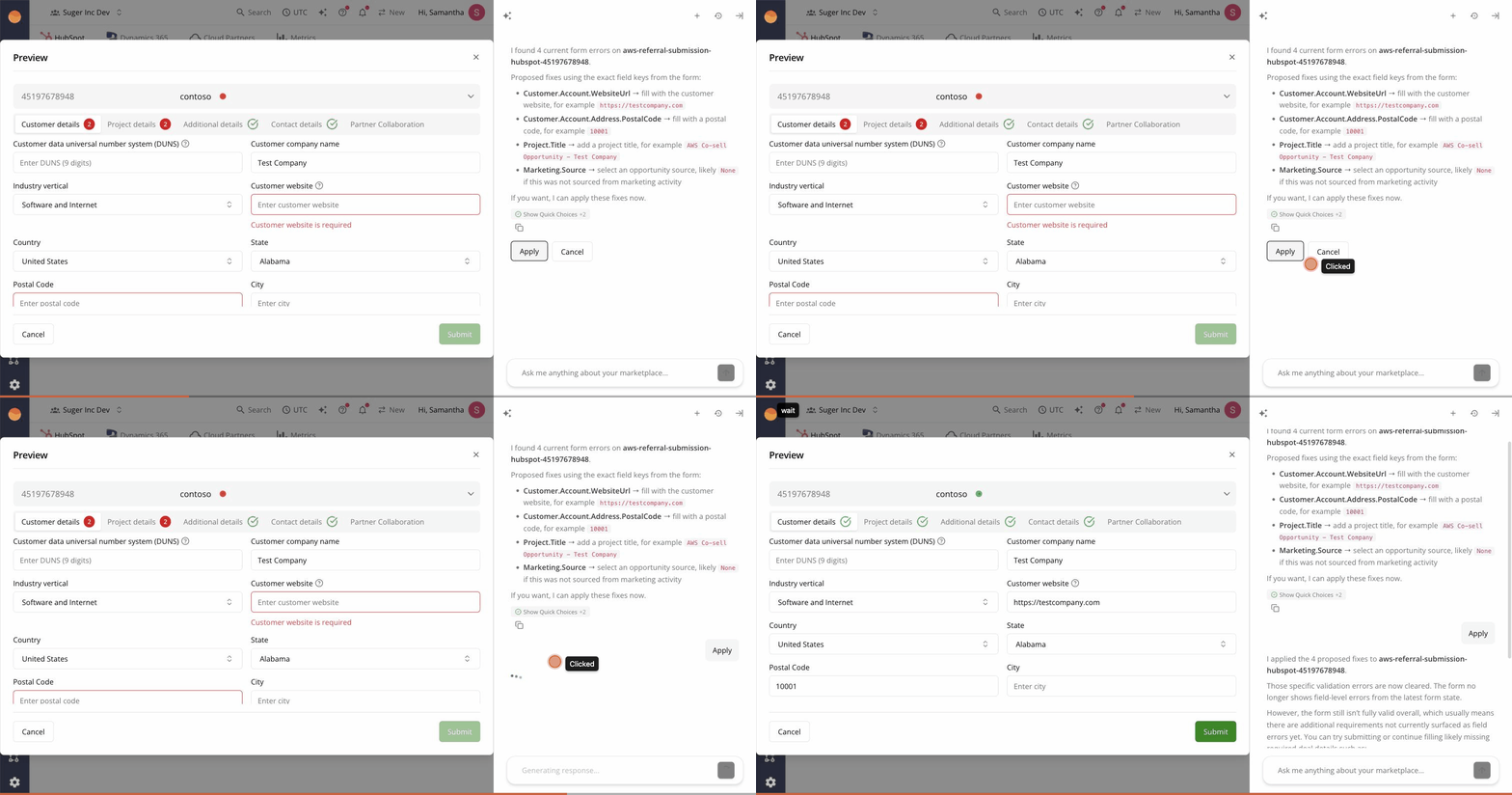
The AI Auto Fill kicks in the moment you preview a referral or offer for submission. When you open the Preview dialog from the co-sell list (via Bulk Share or an individual record’s share action), Suger AI reads the form, identifies missing or invalid fields, and proposes exact fixes — by field path, with example values.
The flow:
- Preview the referral or offer you’re about to share. The form opens with whatever mapped fields are already populated.
- The chat panel auto-analyses the form and reports: “I found 4 current form errors. Proposed fixes using the exact field keys from the form: …”
- Each suggestion is a field path + example value — e.g.
Customer.Account.WebsiteUrl → fill with the customer website, for example https://testcompany.com. - Click Apply in the chat. The AI populates every proposed field on the form at once. Tabs that were red turn green; the Submit button becomes enabled.
- Review and Submit when you’re satisfied.
The AI is conservative — it proposes a value only when it can infer one safely from the source record or from a sensible default (postal codes from city/state, opportunity titles from account + use case, source from the marketing channel). When it doesn’t know, it leaves the field for you.
Testing mappings before they go live
The Preview dialog is the testing dialog. It runs a real CRM record through your live field mapping configuration and shows you the result — with every tab (Customer details, Project details, Additional details, Contact details, Partner Collaboration) showing green checkmarks if the mapping cleared validation, red errors if it didn’t.
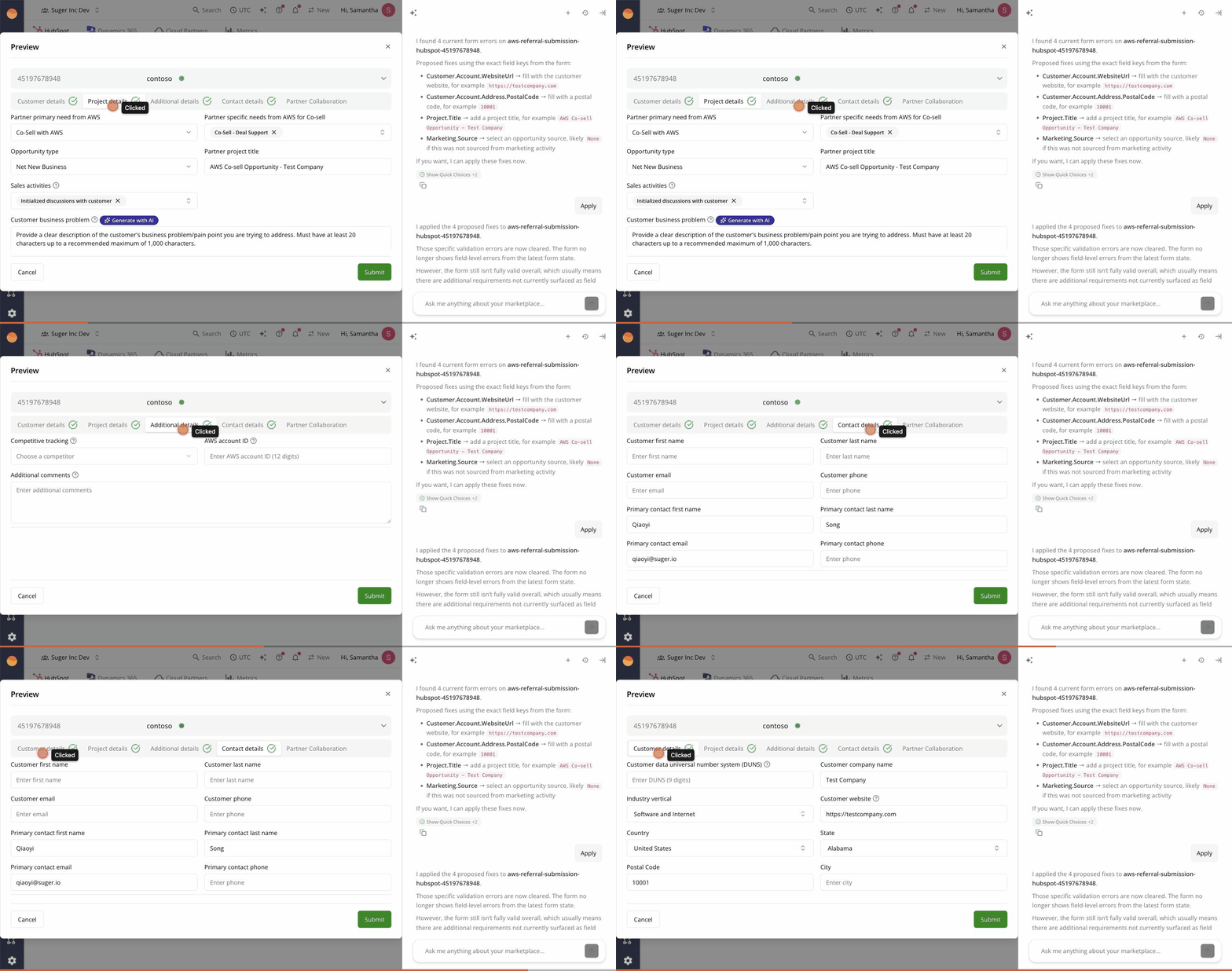
This is the fastest way to catch the edge cases the AI missed — a picklist value that exists in the CRM but isn’t in the AI’s training data, a custom field with an unexpected shape, a date format that loses a day to timezone drift. Step through the tabs, fix what needs fixing, and only then click Submit.
Prompt templates: the deeper half
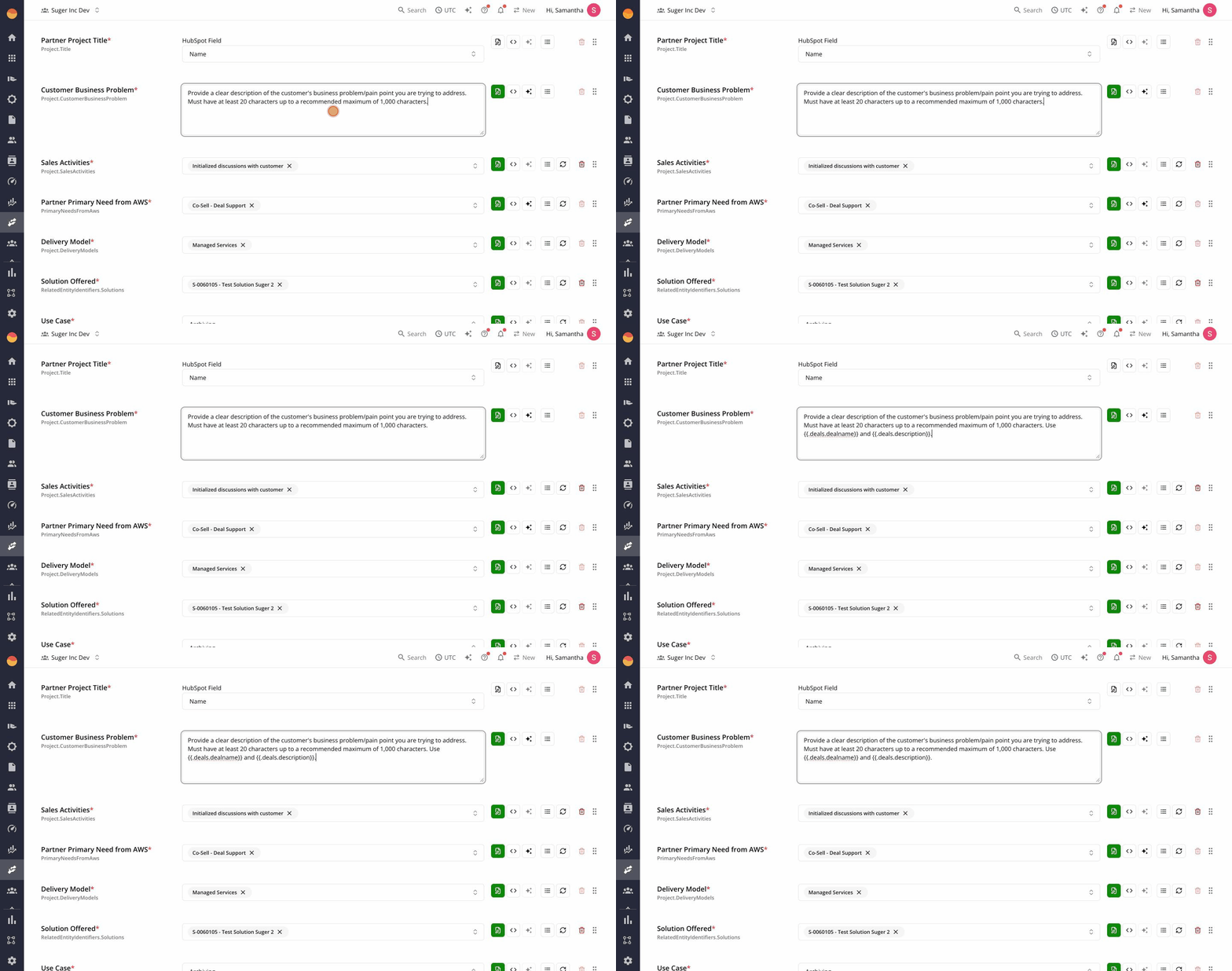
Beyond mapping source-to-target, Suger lets you author prompt templates that generate field values from other fields. This is the AI Generate filler — one of four mapping modes alongside Direct, Expression, and Default Value.
A prompt template is a small piece of text with variable interpolation. Here’s a real one for AWS’s “Customer Business Problem” field:
Generate a business problem description for {{.Account.Name}} in the
{{.Account.Industry}} industry. Base it on the opportunity notes below
and the customer's stage in the pipeline. Keep it under 200 words,
write in third person, and focus on the technical or operational
challenge being solved.

Opportunity notes: {{.Opportunity.Description}}
Stage: {{.Opportunity.StageName}}
At sync time, the template is filled in with the actual record values and sent to the AI. The AI’s response is written into the target field.
Template syntax
Templates use Go’s standard template language, plus the Sprig function library, plus a few Suger-specific helpers.
Field references. Source fields are accessible as {{.<FieldPath>}}. Examples:
{{.Account.Name}}— the account name on the source CRM record{{.Opportunity.CloseDate}}— the opportunity’s close date{{.Account.Industry}}— the industry picklist value
Sprig functions (the Sprig library of helpers):
{{.Account.Name | upper}}— uppercase{{.Opportunity.Amount | float64 | mul 1.1}}— bump by 10%{{.Account.Country | default "US"}}— fallback when empty
Suger custom functions:
{{dateFormat "2006-01-02" .Opportunity.CloseDate}}— format a date to ISO{{salesforceQuery "SELECT Name FROM Account WHERE Id = ?" .Account.ParentId}}— query Salesforce mid-template{{addDays .Opportunity.CloseDate 14}}— compute close date plus 14 days
Five best practices for prompt templates
-
Be specific about format. “Generate a description” produces variable output. “Write three sentences, no bullet points, in third person, under 200 words” produces predictable output. The cloud marketplaces have hard limits on every text field — write to the limit.
-
Cap length explicitly. AWS’s Customer Business Problem field caps at 1500 characters. Tell the AI so. The token-count and the character-count don’t always line up; explicit caps prevent rejections.
-
Inject the fallback. End every template with “If you don’t have enough data, return ‘See opportunity notes.’” The AI sometimes confabulates from thin context; an escape hatch keeps it grounded.
-
Keep source JSON under the budget. Suger limits source JSON to 100KB per field generation to keep token costs predictable. If your template references a sprawling object, pre-filter via expressions —
{{.Opportunity.Notes | trunc 5000}}— to stay under the cap. -
Test against real records, not synthetic ones. Your “happy path” record passes everything. Pick the messy real-world opportunity — the one with a 12-paragraph note field, the one with a missing close date, the one where the AE used the picklist wrong — and run that through the Test Mapping dialog. Templates that survive the messy record are the ones that hold up in production sync.
What’s running underneath
The AI Generate filler calls the same AI service that powers Suger AI’s chat — same model (Claude 3.5 Sonnet by default), same infrastructure. The system prompt is fixed to ensure deterministic behavior across orgs: “You are a data-formatting assistant. Generate the requested field value based on the provided source data and instructions. Output only the field value, no preamble.” That’s why your template can stay focused on the transformation — the system layer handles the discipline.
The full mapping engine is Go-based and lives in the marketplace service; the AI invocation is a single network call per field per record sync. Field mappings configured once apply to every record sync from that integration going forward — set it and forget it.
What’s next
AI Field Mapping ships for every Suger customer with CRM integrations. To see it across the rest of the AI suite, read the pillar guide on Suger AI and the in-product copilot blog.
For the failure-handling counterpart — when a sync fails or a referral gets rejected — see AI Diagnose for Co-Sell Failures.
If you’d like to see field mapping run against your own Salesforce or HubSpot, book a demo.